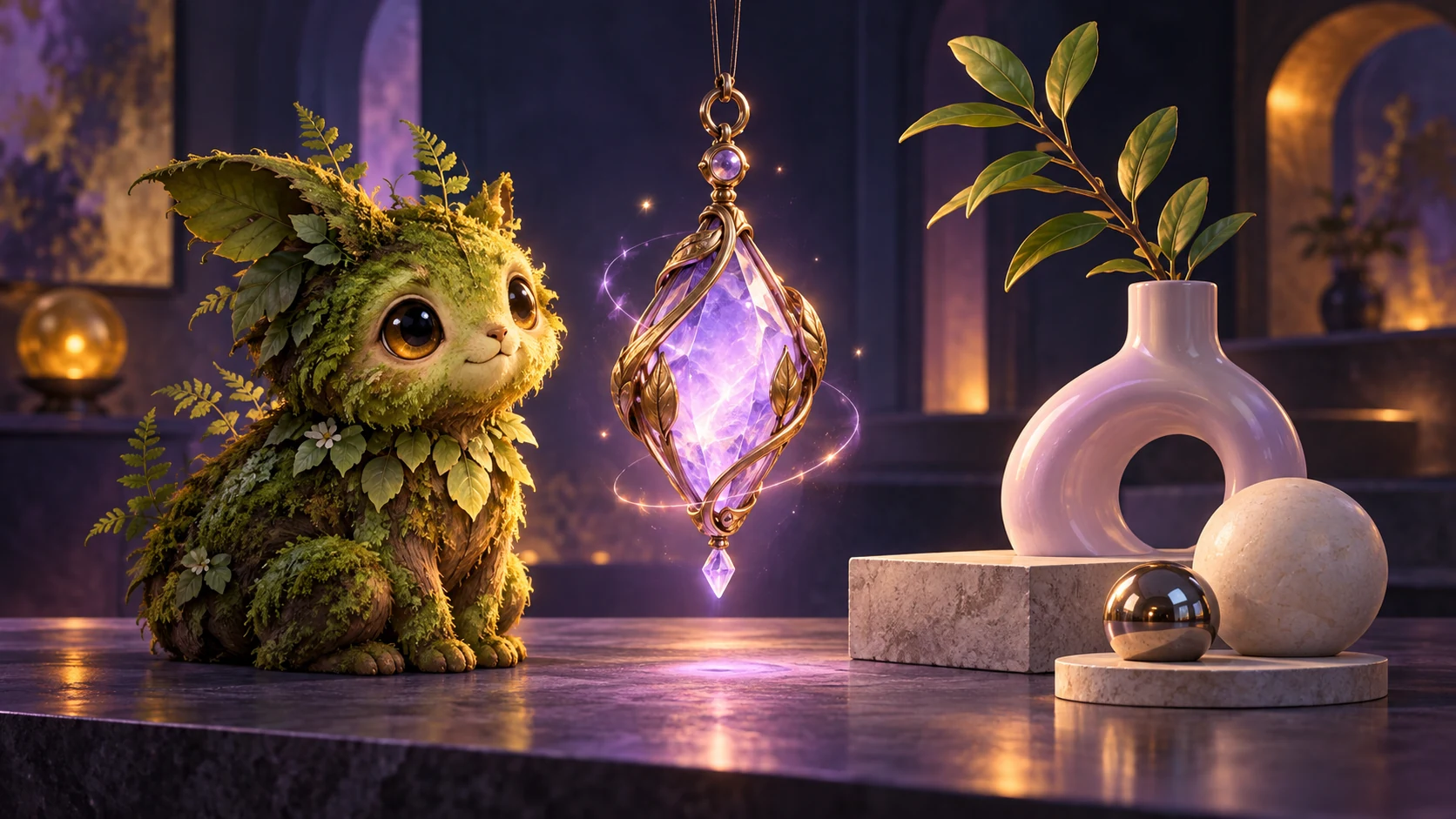
Start with an idea
Sign in and open a saved campaign you own or can edit. Choose New → Custom image to open Image Studio.
Describe the subject, setting, and details that matter. Choose an image shape, then generate.
Try: A moss-covered guardian with antlers of ancient oak, carrying a lantern filled with fireflies.
Choose how much of your world to bring along
Choose Anything for an open-ended idea, Monster for a creature, or Magic item for an object. Your description still guides the result.
Campaign context brings in your campaign’s world and visual style. Turn it off for an idea outside that setting.
Viscanon fantasy art style adds a hand-painted, sourcebook-style finish. Keep it on for that look, or turn it off and describe the style you want.
Start from artwork you already have
Upload a PNG, JPG, or WebP up to 8 MB, then describe the result you want. Use Campaign context to help bring it into your world’s style.
The uploaded image guides the subject and its distinctive details. Review the result carefully; those details can still change.
Try a new direction or make a small change
Choose a generated result, then decide what it needs.
Reimagine: Change the prompt to try a different viewpoint, composition, or setting. Describe any details you want to keep.
Refine: Keep the original prompt and settings, then describe a targeted change.
Try: Make the lantern glow amber. Keep everything else the same.
Check the whole result before using it. Even a small request can affect other details.
Make the next credit count
Each new image, Reimagine, or Refine costs 1 credit from your existing Viscanon balance. There’s no separate Image Studio subscription.
Your generated images appear in Your creations. Revisit a saved result, refine it, or choose Download when you’re ready to use it.
Create anything with Image Studio
Monsters, magic items, and ideas beyond your campaign. Put your credits toward whatever you want to see next.